Introducing my macOS Setup I
my obsession with random apps probably started in elementary school when i made business cards in word just for fun. i liked exploring what software could do. in middle and high school i got into Google Sheets and Notion, then started experimenting with extensions and small scripts. i then used Google Colab to automate parts of it because i wanted custom functions that i could not find anywhere.
in 2025 i learned nvim and spent HOURS on linux which pulled me into terminal tools and keyboard workflows. since then i’ve just kept exploring whatever catches my interest. today i’ll share my current flow, the result of years of being curious about software.
📣 I would like to make a special shoutout to my friend, Alan Huang from OMRON, who introduced me to many of the apps listed here.
TLDR🤓
TLDR I use these apps:
- neovim with kickstart.nvim
- Rectangle
- AltTab - Windows alt-tab on macOS
- Arc from The Browser Company
- Vimium C - All by Keyboard - Chrome Web Store
- PDF Viewer for Vimium C - Chrome Web Store
- Raycast - Your shortcut to everything
- Shottr
- Notion Desktop App for Mac & Windows | Notion
- pro is free with GitHub Education
- Notion Calendar
- A privacy-first, open-source knowledge base
- iTerm2 - macOS Terminal Replacement
- Remote Desktop Software for macOS | AnyDesk
- Docker: Accelerated Container Application Development
- Google Antigravity
- Zotero | Your personal research assistant
Updates
[2025/02/21] Published
[2025/02/27] Transferred Shell Tools to NEW PAGE
[2025/03/10] Updated Raycast Optimization
How it all started… Neovim
Why did I start using Neovim? At my internship, every shared machine had nvim setup, so I eventually gave in.
Funny enough, at first, I basically spammed i and lived in insert mode.
Modern Vim-based text editor extensible in Lua for high-performance workflows.
What neovim changed for me:
- full keyboard navigation
- faster movement across text and files (
gdis my fav)
I highly recommend to use kickstart.nvim config. If you get confused you can follow The Only Video You Need to Get Started with Neovim by the creator of kickstart (a.k.a legend 👑).
After I got used to that workflow using a trackpad on my personal macOS machine started to feel slow. Especially since company Ubuntu has strong window management, but macOS does not.
macOS Window Management
macOS window manager that lets you resize and position windows using keyboard shortcuts.
I use Rectangle instead of the native macOS window management because:
- closer to ubuntu feel (faster)
- move across monitors
- more customization
I have my shortcut keys set to:
Ctrl + Alt + l: Move to right sideCtrl + Alt + h: Move to left sideCtrl + Alt + Space: Full Screen
other than this, I have Ctrl + Alt + { k , i , u , j } to snap a window to each of the four corners.
But we still do not have alt-tab like Windows or Linux
AltTab
AltTab - Windows alt-tab on macOS
macOS app that brings Windows-style
Alt + Tabwindow switching, letting you quickly cycle through open windows using only the keyboard.
macOS does have native switching, but it’s different. macOS only has Cmd + Tab, which switches through all open applications, not individual windows. Nothing else. For reference, Linux has Alt + Tab, which cycles through each open window across apps.
That’s what AltTab adds to macOS.
I have it setup so that:
Alt + Tab: Switch between open windows in the current DesktopAlt +` : Switch between the windows of currently selected Application
But this poses new ambition to not use the touchpad on browser…
Arc Browser
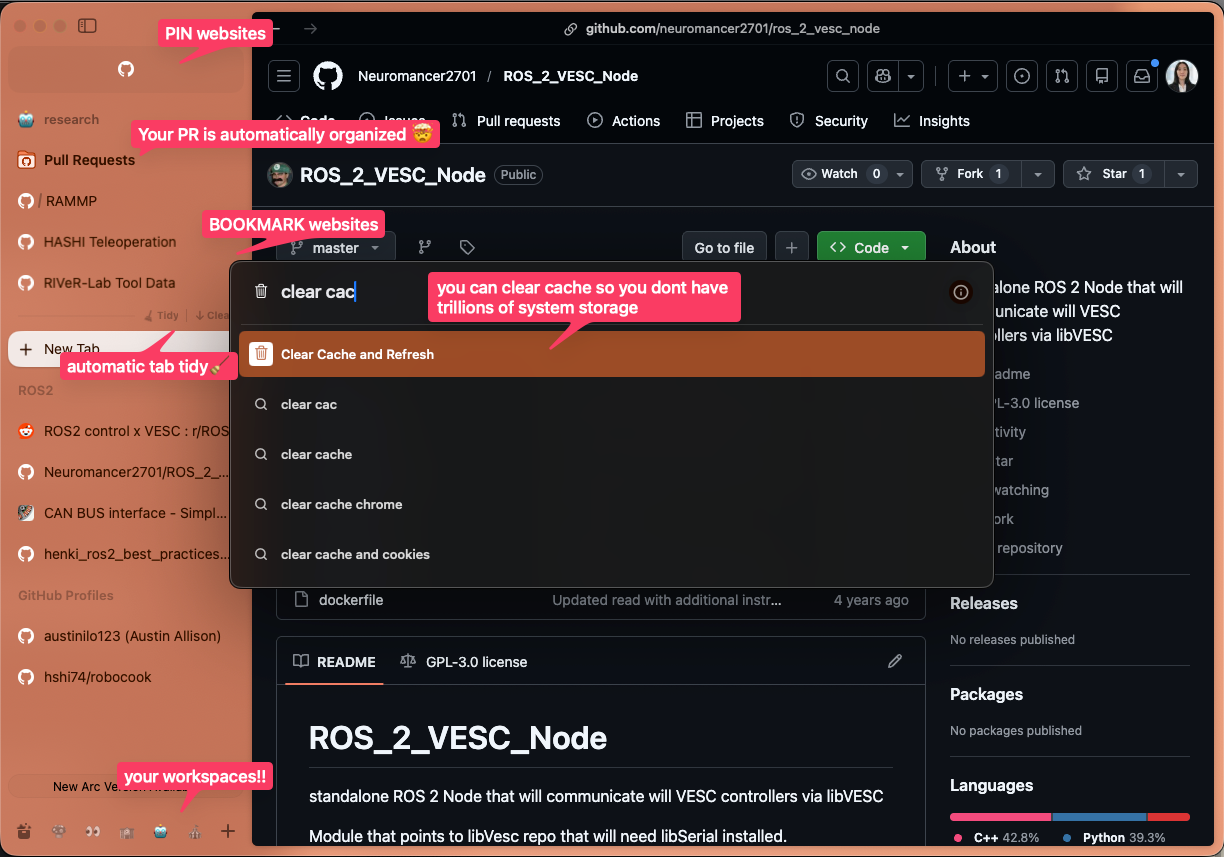
Chromium-based browser with workspace-driven tab organization and profile isolation. You can move around the workspaces using your keyboard.
the coolest part is you can set custom keyboard shortcuts to navigate around your tabs and workspaces. here are mine:
Cmd + Alt + l: Next Workspace (”right”)Cmd + Alt + h: Previous Workspace (”left”)Cmd + Alt + k: Previous Tab (”up”)Cmd + Alt + j: Next Tab (”down”)
and there are some other ones like Cmd + Shift + c (copy tab link), Cmd + [ (go back) and Cmd + ] (go forward) that are useful and unique to Arc Browser.
and, no more tabs so small you cant see the tab title…
But you still can’t move around individual browser windows the way you can move through text in Vim. That’s when I discovered Vimium, though, spoiler, I don’t use it anymore.
Vimium
browser extension that provides keyboard-based navigation and control of the web in the spirit of the Vim editor.
I thought, now I can navigate the browser with just my keyboard!
Then I opened a PDF… and realized I still couldn’t 😞
Vimium C
fork of vimium with an advanced omnibar.
I use Vimium C now because I found PDF Viewer for Vimium C - Chrome Web Store which only works with Vimium C. It lets me navigate PDFs with the keyboard, which fixed the one place where things were still breaking my flow!!
but, i was not moving around my computer (Mac) mostly with my touchpad. then, my friend introduced me to Raycast 🐐🐐
Raycast
Raycast - Your shortcut to everything
Keyboard-first macOS launcher for apps, scripts, window management, and automation.
It is like Spotlight, but better (so as fans claim). I never used spotlight but, all I know is that once I started using Raycast, my workflow improved immediately.
I can spend HOURS talking about Raycast. Some basic stuff I use on daily if not hourly basis are:
- Quicklinks
- Snippets
- Emoji Picker
- Clipboard History for Mac | Raycast
- File Search
- Raycast Store: Kill Process
you could also use their window management, i like Rectangle better because i have multiple displays. Raycast management does not move windows across monitors.
I can have another blog for this… and I am yet to find good resource outlining useful shortcuts.
Raycast Toolkit Written ✅
but what about when you take screenshots?
Racing to press
Cmd + Cbefore the preview disappears from the bottom corner? I was.
Shottr
Fast screenshot and annotation tool with scrolling capture and OCR support.
After I started using Shottr, I realized macOS already lets you set separate shortcuts to copy or save screenshots. So technically, you don’t need another app.
Shottr adds a step:
- screenshot
- preview opens
- then
Cmd + CorCmd + S
It’s NOT faster. The only real benefit is quick editing right after capture.
F.Y.I Take a screenshot on Mac - Apple Support
with this build, I am not able to navigate around the entire computer with just computers.
so I re-structured my data and task management.
Getting to Data Management… Notion
Notion Desktop App for Mac & Windows | Notion
All-in-one workspace for databases and time management. Students can get Notion Pro for free through GitHub Education
Since I began using Notion in high school, this application has made amazing advancements! But I agree that how I have changed to use it also made my experience better:
- type in
Markdown; I used to select and edit each word. This takes too long. - use
/to bringup blocks; stopped using+button. - use it for Shared Data rather than for managing tasks.
- I use another
Markdownbased application for task management.
- I use another
- have simple layout with Space for each segment of my life
- Robots 🤖 ← db of project and daily log tracking
- Job Search 👀 ← db of job and cover letter tracking
- Academics 🏫 ← db of assignments and class grade weighing
- Entertainment 💃 ← db of travel plans and music
- (Shared DB 📁) ← just a db of shared doc
One task I do manage on Notion is Canvas assignments using Notion Canvas Assignment Import - Chrome Web Store. This tool automatically uploads your Canvas Assignments to Notion. This proved to be helpful because I extensively also use Notion Calendar.
One thing that annoys me is I cannot use nvim on here. This guy from my internship built Vimtion: Vim for Notion - Chrome Web Store for Notion Browser though, super neat!
Notion Calendar is goated, probably more than Notion itself.
Notion Calendar
All of your commitments, now in one place. Meet the beautifully designed, fully integrated calendar for your work and life.
Notion Calendar only came out 2 or 3 years ago. When it was in Beta it was terrible but now, it is the best one out there. And it’s completely free.
Basic stuff it can do:
- read and edit Google Calendar
- suggest new time for calendar invite
- end calendar invite with auto Google Meets or Zoom meeting info
- textiles your availability by selecting times.
Though, these things, I assume every calendar apps can do.
What makes Notion Calendar goated 🐐:
- pretty design
- it can be controlled completely by keyboard
t= go to todaym= monthly calendarw= weekly calendar- shortcuts are also editable
- you can integrate Notion db into Notion Calendar
- My assignments auto-sync from a Chrome extension into a Notion database, which shows up on my Notion Calendar. So when I open my calendar, I see what’s due that day.
- I schedule my internship hours on Notion Calendar, which is linked to a daily log database. That way my team can see when I’m coming in and what I worked on.
Limitations i found (and semi-fix):
- only read-only access to Microsoft Calendar
- limited colors (this can be overcome by using GCal import)
💬 Side Note: Apple Calendar
It has pretty design and CAN edit Teams Calendar unlike Notion Calendar.
But, you cannot navigate using your keyboard (unless you use external tool like folivora.ai - Great Tools for your Mac!), and cannot import Notion db. Depending on the implementation, it is better than Notion Calendar.
well now what? seems like we are fully setup! no. we need a good daily task management… preferably open sourced because data is important!!
Logseq
A privacy-first, open-source knowledge base
Local-first, graph-based knowledge management tool with bidirectional linking.
Logseq is date-based, which matches how I plan my days. Each day generates a local .md file, and I use Vim mode inside Logseq, so everything stays keyboard-driven. I track habits, goals, communication notes, and draft my daily schedule there. The todo plugin logs task duration, which surfaces how I actually spend time. I keep generic tasks like do homework there instead of on my calendar to preserve visual space.
my journal format
🗓️ Date
- wake up @ time
- do something @ time
- sleep @ time
Classes
[[School]] ← links to data
- class 1
- TODO something ← i dont use the school section as
- class 2 much but i have this for time flow
Others
[[At the end of the day]]]]
- 💬 communication
- TODO Email
- TODO LinkedIn
- TODO iMessages
- 🤖 robots
- TODO something
- 💼 job search
DONE apply
- 🎧 music
- TODO meeting stuff
- 🧑💻 extra curricular I
- 🧑💻 extra curricular II
- DOING build something ← shows on right how much time spent
- 💃 hobby
The file starts blank everyday. Instead of manually copying unfinished items forward, I wrote a small script to carry them over.
my create_journal.sh script
#!/usr/bin/env bash
set -euo pipefail

JOURNALS_DIR="$HOME/Desktop/dev/logseq/journals"

TODAY="$(date +%Y_%m_%d)"
TODAY_FILE="$JOURNALS_DIR/${TODAY}.md"

# Check if file has real content (not empty / whitespace)
has_content() {
  local f="$1"
  [[ -f "$f" ]] && grep -q '[^[:space:]]' "$f"
}

LAST_WITH_CONTENT=""

# Find newest journal with content (excluding today)
for f in $(ls -1 "$JOURNALS_DIR"/*.md | sort -r); do
  base="$(basename "$f")"

  [[ "$base" == "${TODAY}.md" ]] && continue

  if has_content "$f"; then
    LAST_WITH_CONTENT="$f"
    break
  fi
done

if [[ -z "$LAST_WITH_CONTENT" ]]; then
  echo "No previous journal with content found."
  exit 1
fi

# Overwrite today's journal (no backup)
cp "$LAST_WITH_CONTENT" "$TODAY_FILE"

echo "Copied:"
echo "From: $LAST_WITH_CONTENT"
echo "To:   $TODAY_FILE"
by this point I was pretty satisfied, except, why type so much when I don’t have to?
Spokenly
Spokenly – Whisper-Powered Mac Dictation App | Best Voice to Text for macOS
Seamless speech-to-text in every application across your Mac and iPhone.
I only started using speech-to-text apps in 2026 but has helped me to develop and gather my thoughts much faster. Spokenly is a free and high-performing option I found amongst many competitors.
ok so now, was i satisfied? yes. yes I was! although i’m always on the search 🔎
so now I started to discover some shell tools🙂
UPDATE: I transferred
Shell Toolsto NEW PAGE
Unrelated to Optimization but in my workflow…
Remote Desktop Software for macOS | AnyDesk
Lightweight remote desktop software for secure access and support. They briefly restricted free use in 2025, but it’s free again. AnyDesk has low latency and responsive screen updates. You can set passwords for unattended access and restrict login to approved users.
Docker: Accelerated Container Application Development
Container runtime and GUI for building and managing containers locally on macOS. Takes up half of my storage but cost of having a macOS.
Google Antigravity
Agentic IDE developed by Google, fork of VS. Was pretty skeptical in November, 2025 when it launched but I now use Antigravity and VS the same amount. Still has some minor bugs.
Zotero | Your personal research assistant
Open-source reference manager for organizing research and generating citations. Cannot manage my papers without Zotero (bless).